
How to Install Smartiflix IPTV on Any Device
We guide you step by step to set up your Smartiflix IPTV subscription on any device. Follow the tutorial for your equipment and start streaming in minutes.
Set Up Smartiflix on Windows / Mac
IPTV Smarters is the recommended player to enjoy your Smartiflix IPTV subscription on your computer. It is compatible with both Windows and macOS and offers a clean, intuitive interface.
Download for Windows Download for MacDownload the software
Click the button for your operating system above to start the download.
Run the installer
Double-click the downloaded file and follow the on-screen instructions to complete the installation.
Open IPTV Smarters
Find the IPTV Smarters icon on your desktop or in your applications and launch the software.
Enter your Smartiflix credentials
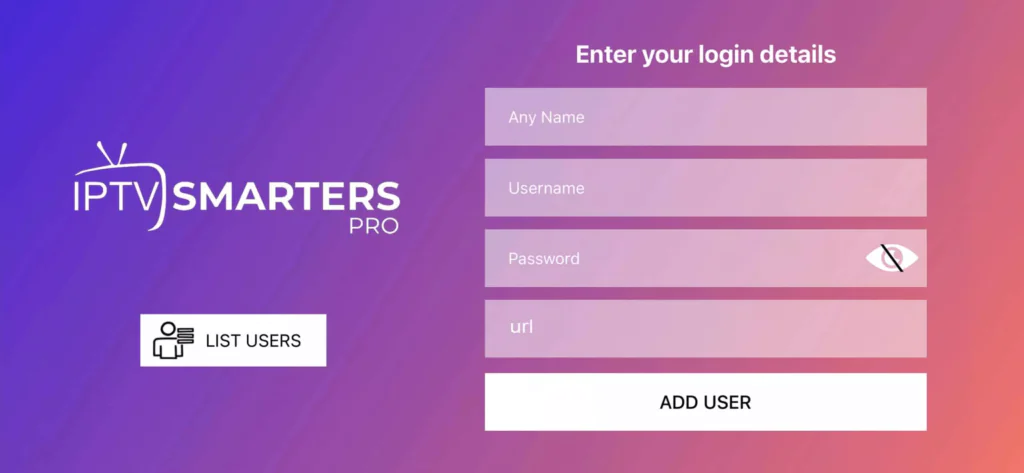
Enter the username, password and server URL you received after your Smartiflix order. Confirm, and your channels will load instantly.
Recommended speed: An internet connection of at least 10 Mbps is advised for smooth HD streaming with Smartiflix.
Privacy tip: Using a VPN is recommended to secure your connection while streaming.
Set Up Smartiflix on Fire TV Stick
This guide explains how to install IPTV Smarters on your Amazon Fire TV Stick using the Downloader app.
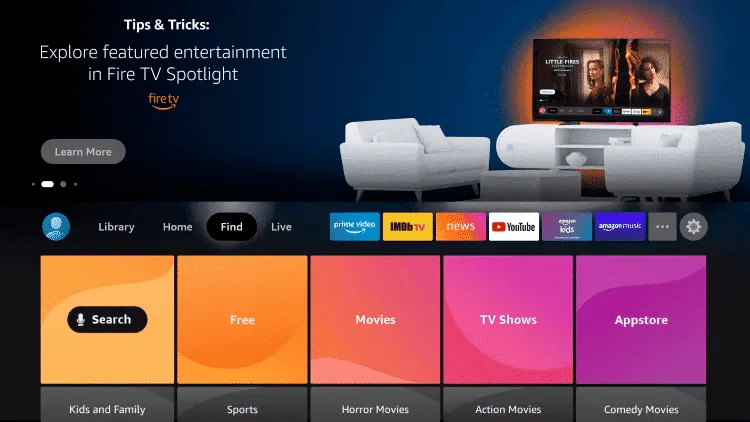
Open Search
From your Fire TV home screen, navigate to the search icon.
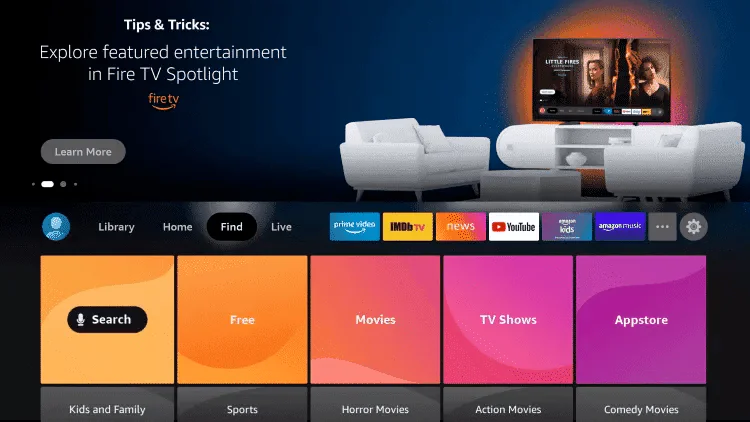
Display the keyboard
Click Search to bring up the on-screen keyboard.
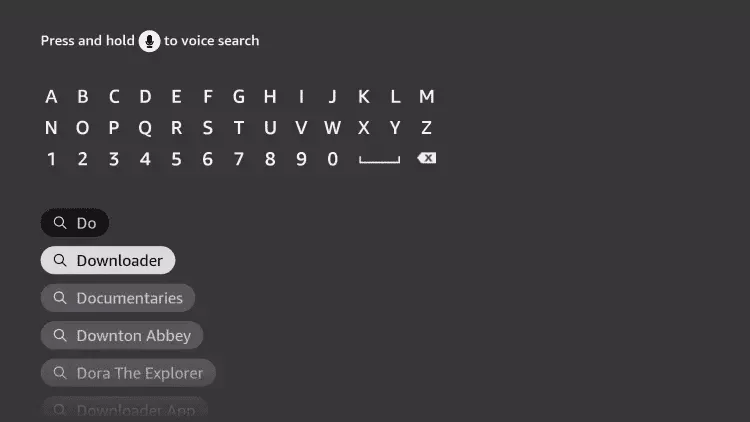
Find Downloader
Type "Downloader" and select the app from the results.
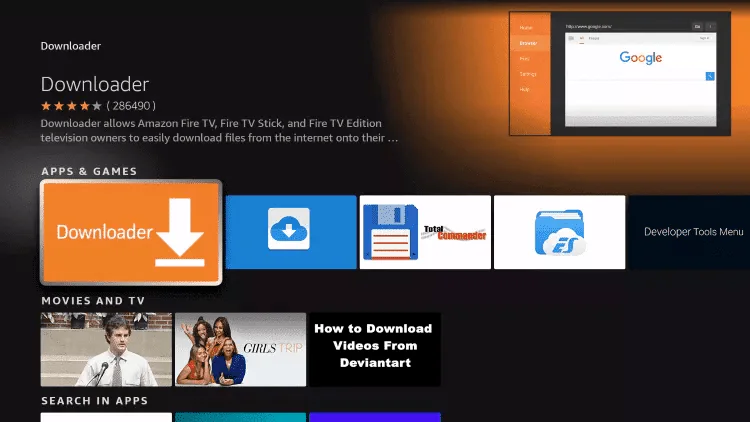
Select the app
Identify Downloader by its orange icon and select it.
Install Downloader
Press Get or Download to start the installation.
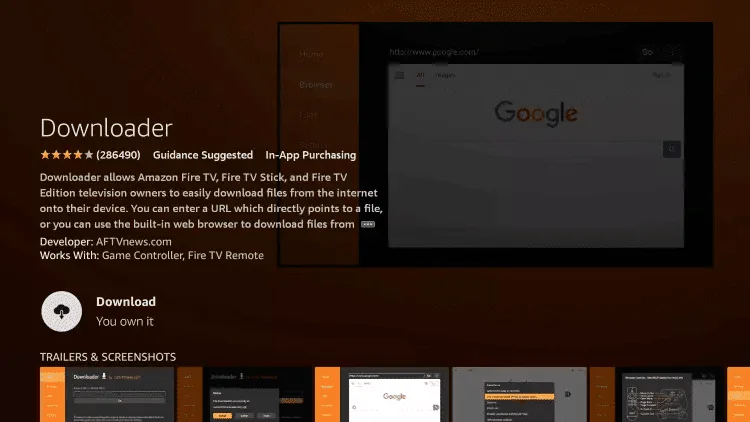
Launch Downloader
Once installed, press Open.
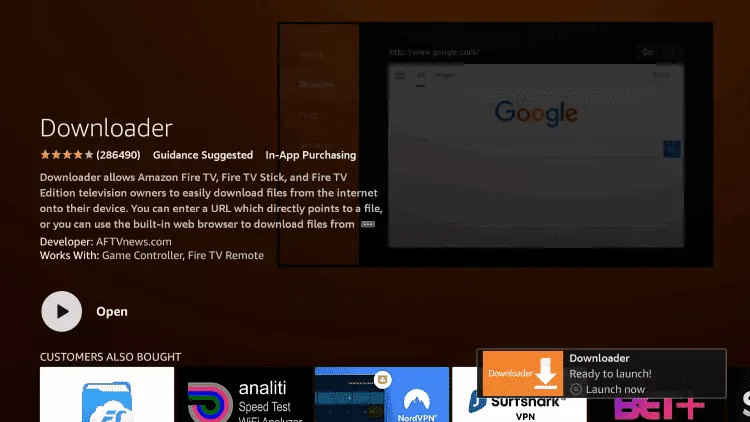
Go to Settings
Return to the Fire TV home screen and open Settings.
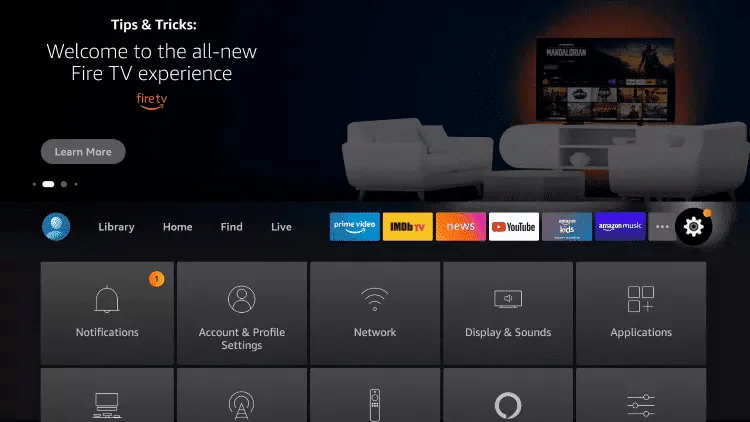
Open My Fire TV
Select My Fire TV from the settings menu.
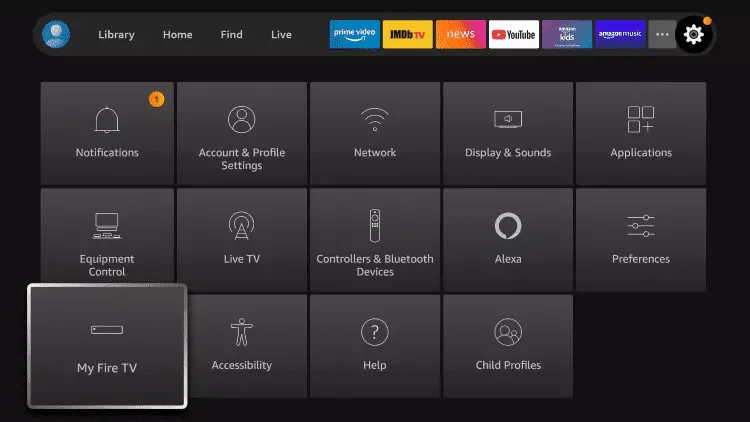
Developer Options
Navigate to Developer Options.
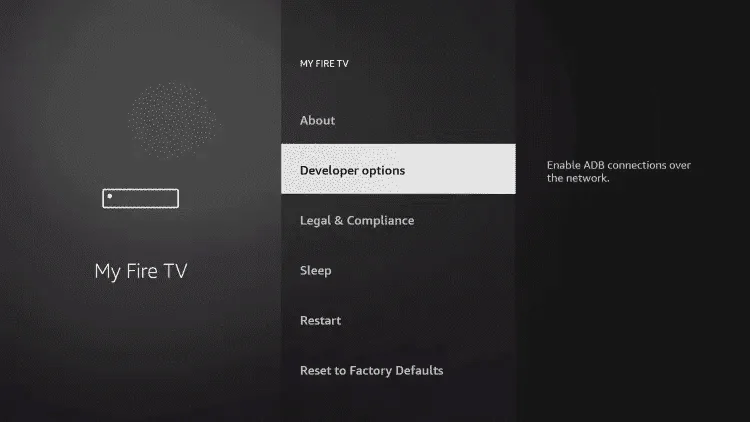
Unknown Sources
Locate the option Install apps from unknown sources.
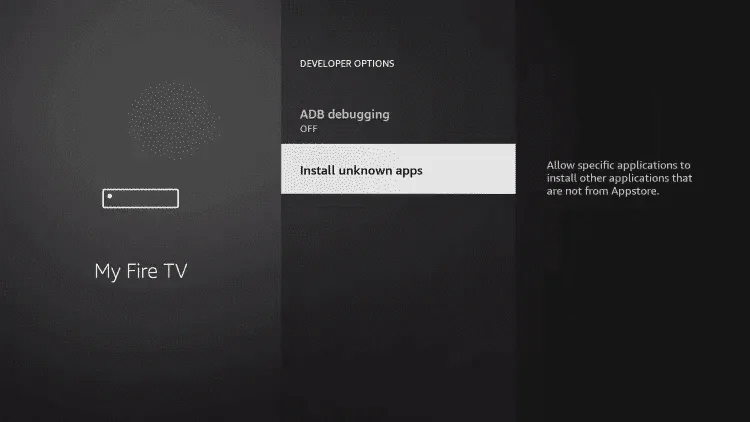
Enable Downloader
In the list, find Downloader and enable the permission.
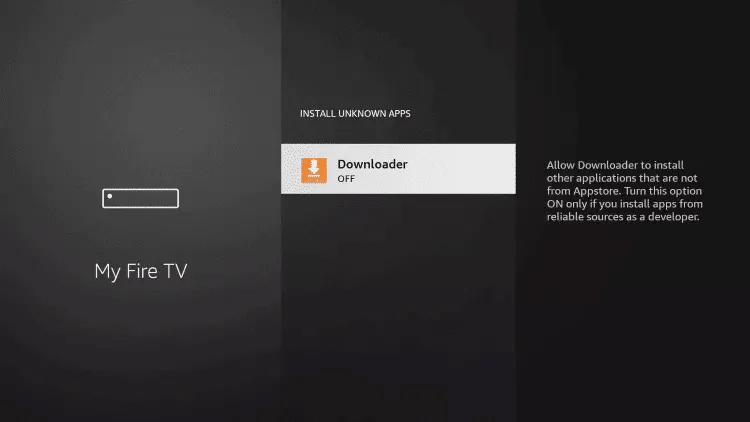
Confirm activation
This step allows downloading external apps via Downloader.
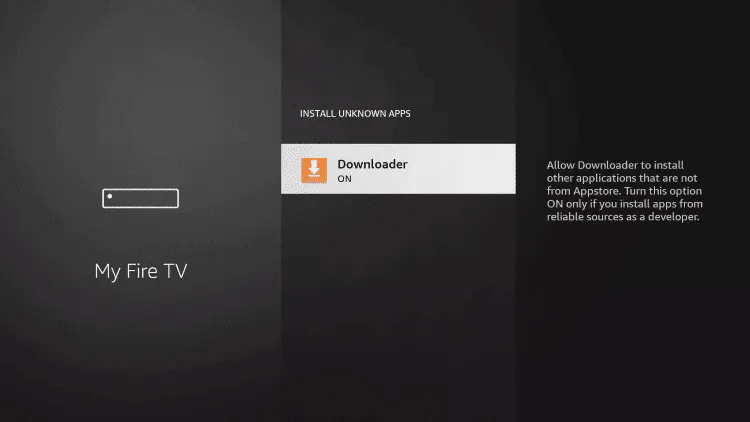
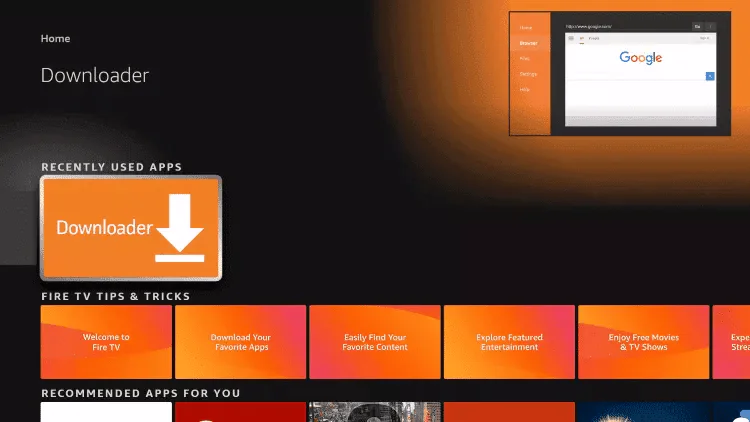
Relaunch Downloader
Open the Downloader app again from your apps.
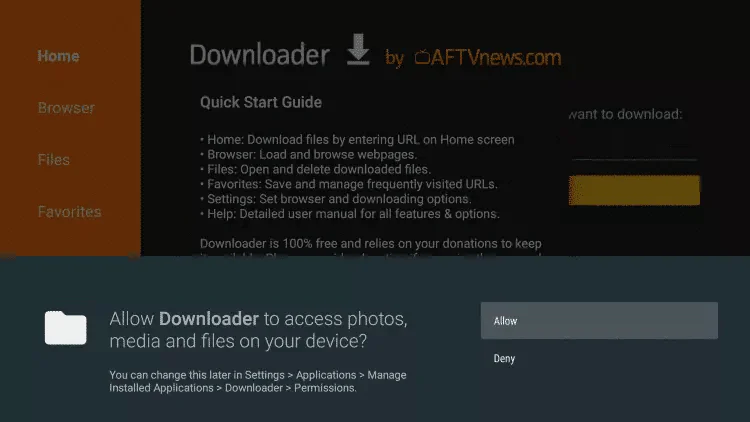
Accept permissions
Press Allow when the app prompts you.
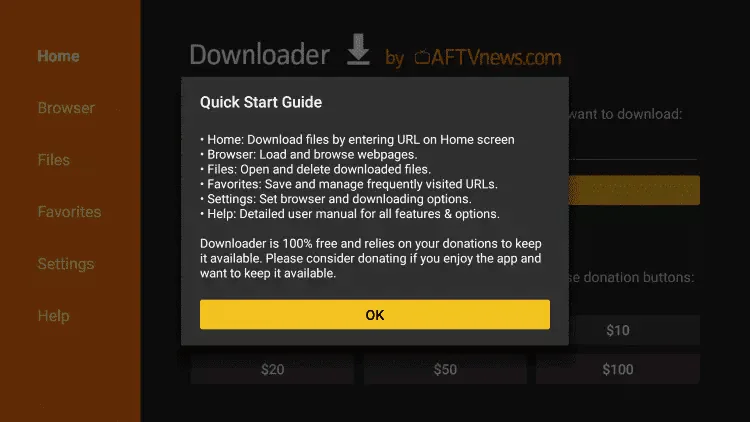
Confirm
Press OK to continue.
Enter the APK URL
In the Downloader URL field, type the following address and press Go:
https://www.iptvsmarters.com/smarters.apk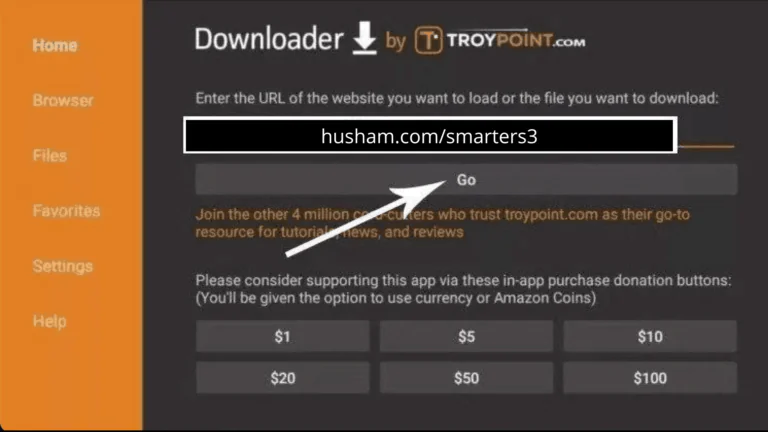
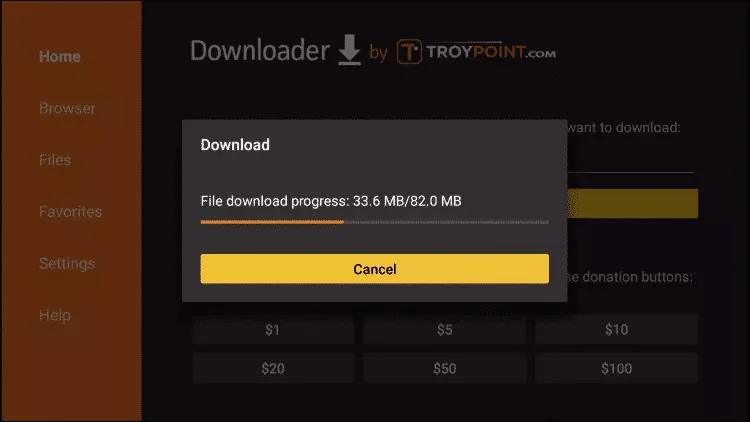
Wait for download
Let the APK file finish downloading.
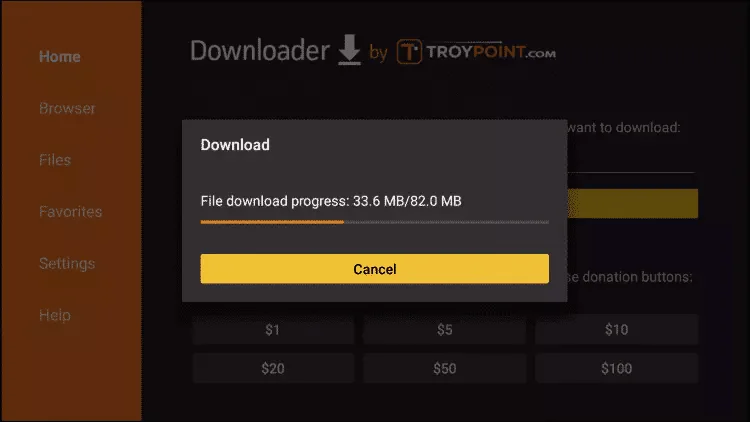
Install the app
Press Install once the download is complete.
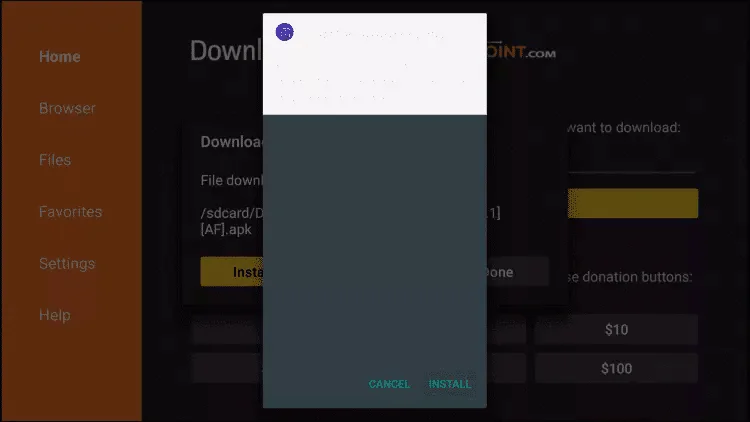
Finish
Click Done to exit the installer.
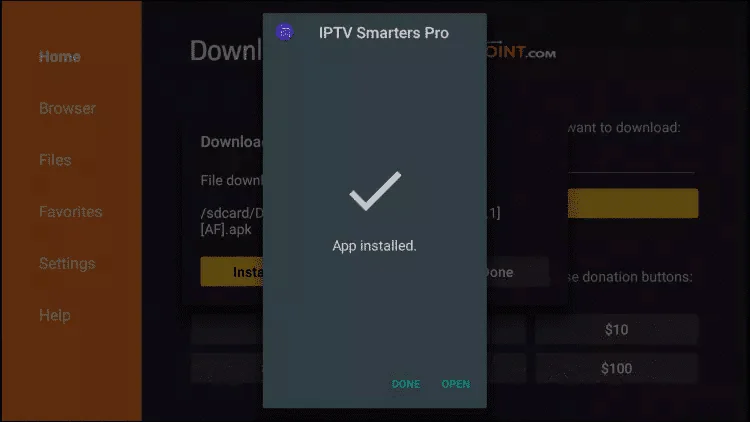
Launch IPTV Smarters
Open the app and choose Login via Xtream Codes API.
Connect to Smartiflix
Enter your Smartiflix subscription credentials received via WhatsApp or email.
Alternative Option: TiviMate
TiviMate is an excellent IPTV player for Fire TV Stick, offering an interface similar to a traditional set-top box.
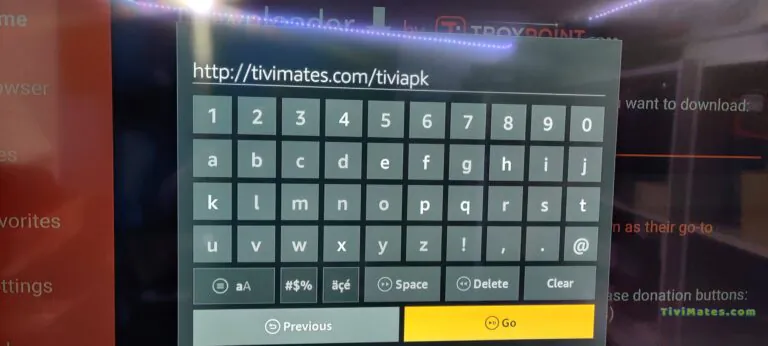
Download TiviMate
In Downloader, enter the following URL and press Go:
https://tivimates.com/tiviapkWait for download
The file downloads automatically — wait a few moments.
Install and open
Press Install, then launch TiviMate once installation is complete.
Add your playlist
Select "Add playlist" then choose "Xtream Codes".
Enter your Smartiflix credentials
Fill in the Smartiflix login credentials received after your order.
Set Up Smartiflix on Android
Install IPTV Smarters on your Android smartphone or tablet in a few simple steps to access your full Smartiflix IPTV subscription.
Download IPTV Smarters APKInstall and open the app
Download the APK file using the button above, allow the installation, then launch IPTV Smarters and enter your Smartiflix credentials.
Start streaming
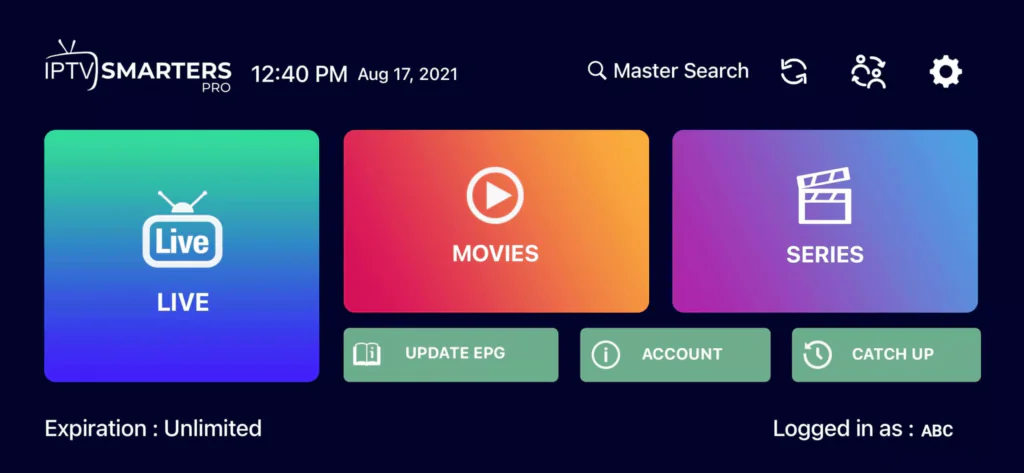
Tap "ADD USER", then select "Live TV" to browse your channels. Double-tap to enter full-screen mode.
If the APK fails to install, make sure "Unknown Sources" is enabled under Settings > Security on your Android device.
Installation not working?
Our Smartiflix technical team will guide you remotely in minutes
WhatsApp SupportSet Up Smartiflix on iPhone, iPad & Apple TV
Use Smarters Player Lite, available for free on the App Store, to watch your Smartiflix channels on any Apple device.
Download on the App StoreDownload the app
Search for "Smarters Player Lite" on the App Store or use the direct link above.
Log in
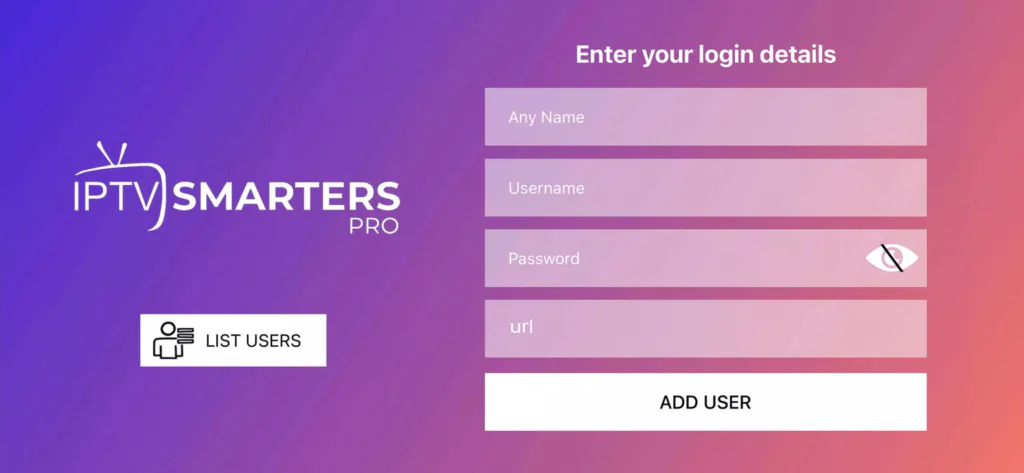
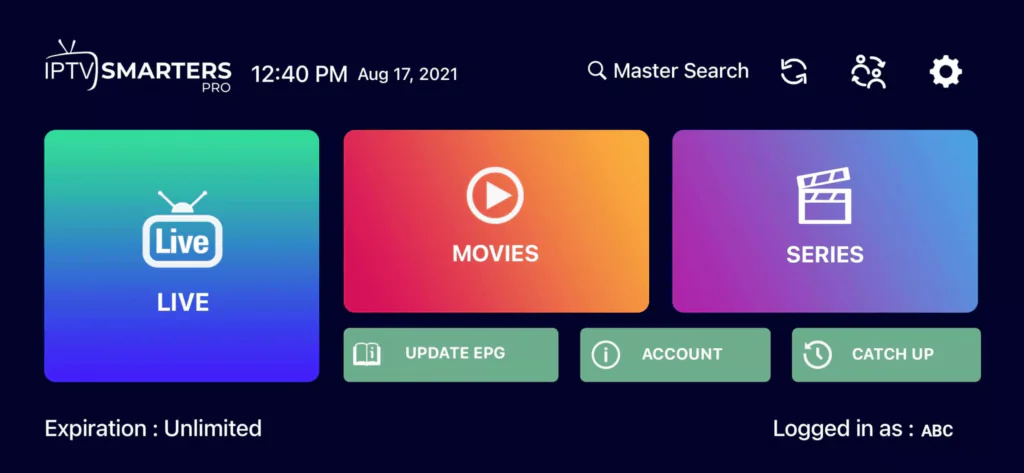
Open the app, enter your Smartiflix username, password and server URL. Tap "ADD USER".
Access your channels
Select the "Live TV" icon to browse your Smartiflix channels. Double-tap to go full screen.

Enable the TV Guide (optional)
To display the programme guide, tap "Install EPG". No additional settings required.

Set Up Smartiflix on Smart TV
Whether you have a Samsung, LG, Sony or any other Smart TV, here is how to activate your Smartiflix IPTV subscription directly on your television.
Install an IPTV app
From your TV's app store (Samsung Store, LG Content Store, etc.), download SetIPTV, NetIPTV or Smart IPTV.
Find your MAC address
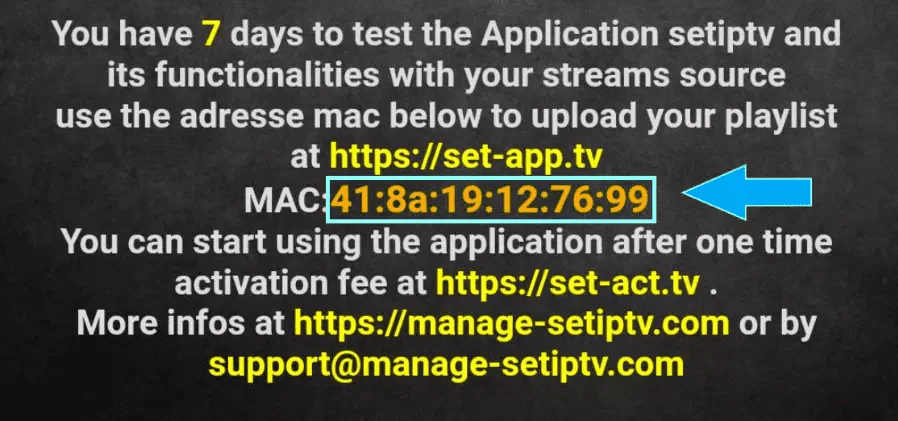
Launch the app. A unique code (MAC address) will appear on screen, e.g. 00:1A:2B:3C:4D:5E.

Send us your MAC address
Send this address to the Smartiflix team via WhatsApp or email. We will configure your access remotely.

Restart and enjoy
A few minutes later, restart your TV and reopen the app. All your Smartiflix channels will be ready!

The Smartiflix team configures your subscription remotely as soon as we receive your MAC address. Nothing else required on your end!
Set Up Smartiflix on MAG Box
Quick activation for all MAG boxes (MAG 250, 254, 256, 322, 324, 410, 420 and compatible models).
Find your MAC address
The MAC address is printed on the label on the back or bottom of your MAG box. You can also find it via Menu → Settings → System Information.
Send the MAC address
Share this address with the Smartiflix team via WhatsApp or email.
Receive your portal URL
After your payment is confirmed, we will send you the portal URL to enter in your MAG Box settings.
Typical MAC address format for MAG boxes:
MAG Box MAC addresses typically begin with 00:1A:79